


Contact Info
106 Anne Rd, Knoxfield VIC 3180, Australia
+61 (03) 82023009
info@ninjaweb.com.au
Contact usRecommended Services


Supported Scripts
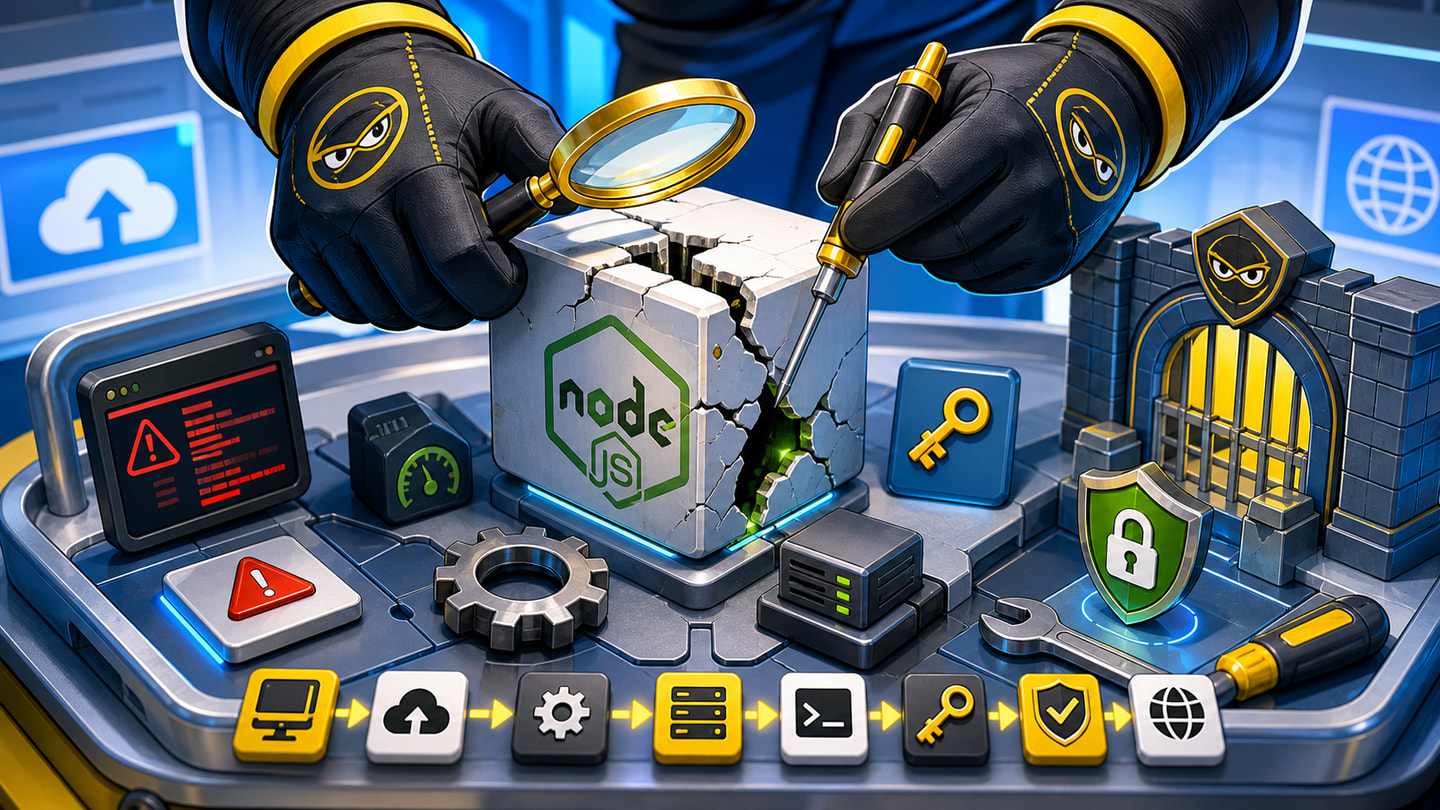

When a Node.js app breaks after upload, the worst move is to start editing random files. The app worked locally for a reason, and it is failing live for a reason. The job is to find the difference, not to rebuild the whole thing in frustration.
The symptom can look different each time: a blank page, a failed install, a crash after restart, a route that returns nothing, a login that no longer works, or an API call that fails only on the hosted domain. All of those can come from a small mismatch between localhost and hosting.
NinjaWeb treats this as a diagnostic job inside Node.js hosting support: capture the exact failure, inspect the hosted environment, fix one layer at a time, and confirm the result with logs.
First Capture The Failure
Before changing anything, write down what actually happened. Did the install fail? Did the app start and then stop? Did the public URL fail while the hosting panel says the app is running? Did one feature fail while the homepage still loads?
This one step prevents a messy repair. A startup crash, missing variable, dependency problem and routing issue can all look like “the app is broken” to the owner, but they need different fixes.
- Capture the browser error or failed action.
- Check the app/process log near the same time.
- Record the last change before the failure appeared.
If It Never Starts, Check Runtime And Install
If the app does not start at all, look at the Node.js version and dependency install first. The hosted runtime may not match the version used locally. A package may fail to install. A build step may be missing. A copied folder may hide the fact that the host cannot rebuild the app cleanly.
Read the install output instead of guessing. A failed package usually leaves a clue. The fix may be selecting the right Node.js version, adding a missing lock file, running the correct install command, or removing a local-only dependency from the production path.
This is not glamorous work, but it is often the fastest path from panic to evidence.
If It Starts Then Dies, Check Startup
An app can start and stop because the host is running the wrong entry point. The app may expect server.js, app.js, index.js or an npm script. If the hosting tool points at the wrong file, the app can fail even when every dependency installed correctly.
Compare the local command with the hosting setting. If local development uses a watcher or dev script, do not copy that blindly into production. The hosted startup path should be simple, repeatable and documented.
If nobody can name the startup file, nobody owns the deployment yet.
If Features Fail, Check Secrets
Missing environment variables often show up after the app appears to be running. Login fails. Email does not send. The database refuses connection. A payment or API call works locally but fails live. That usually means the app started, but it does not know its production settings.
Check required variable names without exposing values publicly. Look for items such as APP_ENV, DATABASE_URL, API keys, session secrets and service credentials. Add them in the hosting environment, restart the app, then test the feature again.
This is also where app development handoff matters. Secrets and live settings are part of deployment, not an afterthought.
If The Domain Fails, Check The Public Route
Sometimes the app is running internally, but the public URL is wrong. SSL may not match. A callback URL may still point to localhost. The app may expect one base path while the domain sends traffic to another. A reverse proxy or hosting route may not be aligned with the app.
Test the final public URL over HTTPS. Then test the action that matters: login, submit, fetch data, call the API, or load the dashboard. If the app works inside the panel but not on the domain, the problem is probably routing, SSL, base URL or callback configuration.
Change One Thing At A Time
The fastest way to lose the real cause is to change everything at once. If you change the Node.js version, startup file, variables and routing in one pass, the app may start again, but nobody will know what fixed it. That makes the next incident harder.
A controlled repair has an order: capture the error, check runtime, check install, confirm root and startup, verify variables, test the public URL, then read logs again. Each step should leave evidence.
If the app needs more control than managed hosting can provide, that is when VPS hosting becomes a serious discussion. Until then, fix the known mismatch first.