


Contact Info
106 Anne Rd, Knoxfield VIC 3180, Australia
+61 (03) 82023009
info@ninjaweb.com.au
Contact usRecommended Services


Supported Scripts
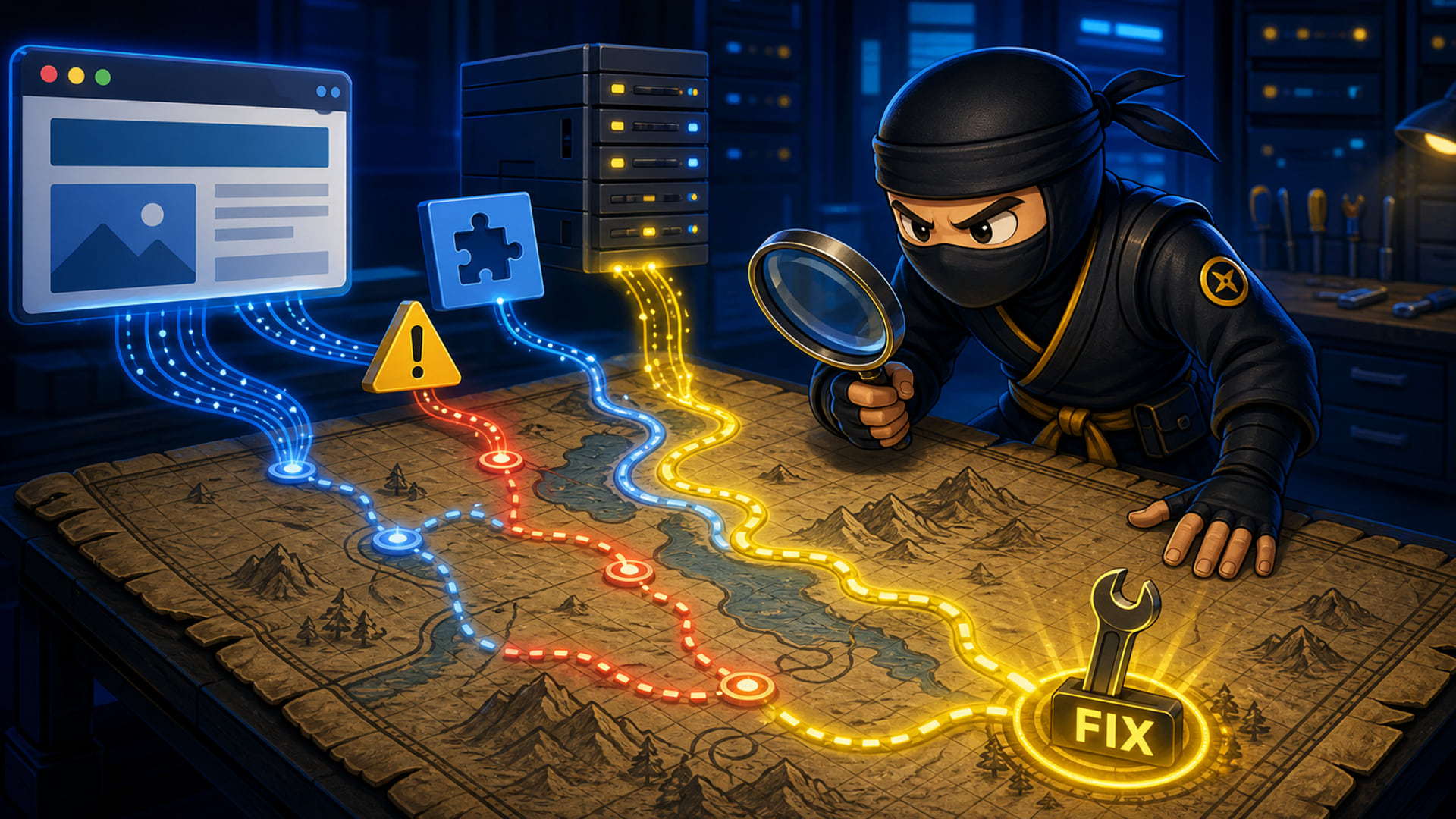

WordPress error logs is not a box to tick after the website is already live. They show the path of the failure before the failure becomes obvious to the owner. A warning, fatal error, timeout, missing file, memory notice, or repeated plugin call can reveal the part of the site that needs attention.
Good WordPress support starts with evidence. Logs do not replace judgement, but they stop the work from becoming a guessing game of plugin toggles and random cache clearing.
The First Error Is Rarely The Whole Story
One visible warning may be the last symptom of a longer chain. For site owners and operators dealing with unstable WordPress behaviour, this is where the cost becomes visible: the wrong plugin gets blamed, the real trigger stays active, and the site returns to the same failure a week later.
Read the timestamp sequence around the incident and compare PHP errors, web server logs, cron activity, and recent changes. The useful proof is not a prettier page; it is evidence that the buyer, the operator and the technical layer are moving in the same direction.
- Record the exact time of the report.
- Check fatal errors before warnings.
- Compare logs with plugin updates.
- Look for repeated file paths.
- Separate one-off noise from patterns.
PHP Warnings Can Point To Ownership Problems
Warnings often show code paths that nobody is actively maintaining. For site owners and operators dealing with unstable WordPress behaviour, this is where the cost becomes visible: deprecated calls, missing array keys, and template notices become normal until a PHP upgrade turns them into a breakage.
Group warnings by plugin, theme, and custom code before making changes. The useful proof is not a prettier page; it is evidence that the buyer, the operator and the technical layer are moving in the same direction.
- Identify the plugin or theme path.
- Check whether the component is maintained.
- Review PHP version compatibility.
- Avoid editing vendor files blindly.
- Create a rollback path before patching.
Fatal Errors Need A Containment Plan
A fatal error is not just a message; it is a stopped request. For site owners and operators dealing with unstable WordPress behaviour, this is where the cost becomes visible: checkout, forms, login, or cron jobs fail while the frontend still appears partly alive.
Use the stack trace to identify the entry point, then reproduce the request in staging or a controlled window. The useful proof is not a prettier page; it is evidence that the buyer, the operator and the technical layer are moving in the same direction.
- Capture the fatal error text.
- Note memory and timeout values.
- Check whether admin or frontend is affected.
- Disable only the suspected path when possible.
- Verify the request after the fix.
Logs Reveal Background Workload
Many WordPress problems happen away from the page view. For site owners and operators dealing with unstable WordPress behaviour, this is where the cost becomes visible: cron jobs, imports, backups, scans, and API calls overload the site while the owner keeps looking at the homepage.
Inspect repeated cron events, admin-ajax calls, REST endpoints, and scheduled tasks around the load spike. The useful proof is not a prettier page; it is evidence that the buyer, the operator and the technical layer are moving in the same direction.
- Look for repeated wp-cron entries.
- Check admin-ajax frequency.
- Review backup and scan timing.
- Inspect import or sync plugins.
- Move heavy work out of peak windows.
Verification Means The Error Stops Returning
A fix is incomplete until the log confirms the same pattern has stopped. For site owners and operators dealing with unstable WordPress behaviour, this is where the cost becomes visible: the site feels better for a day, but the next traffic spike or cron run brings the failure back.
Clear the test window, repeat the failing action, then watch logs, response codes, and resource usage. The useful proof is not a prettier page; it is evidence that the buyer, the operator and the technical layer are moving in the same direction.
- Retest the original action.
- Confirm no new fatal trace appears.
- Watch CPU and memory after the fix.
- Document the component changed.
- Schedule a follow-up log review.
Logs Should Lead To A Controlled Fix
When the evidence points to hosting pressure, plugin failure, or broken WordPress behaviour, the repair path can connect to WordPress experts, WordPress hosting, Australian VPS hosting depending on whether the issue belongs in code, configuration, hosting, or ongoing maintenance.
The useful question is not whether the log looks messy. The useful question is whether someone can read it, isolate the pattern, fix the cause, and verify that the warning stops. WordPress error logs are the map when the site is treated like an operating system instead of a guessing exercise.